1. Introduction
v2rayN is a simple, user-friendly, and powerful v2ray client for the Windows platform, designed for secure internet access and user privacy. It supports various protocols including Vmess, SOCKS5, VLESS, Trojan, Hysteria2, and Shadowsocks (excluding SSR), as well as server subscription and rule-based routing. It is very easy to use for beginners, and this tutorial will guide you on how to configure and use v2rayN to quickly achieve proxy functionality.
2. Download the v2rayN client.
v2rayN official download link: https://github.com/2dust/v2rayN/releases
2. Package Selection
| OS | Latest Version | Description |
|---|---|---|
| Linux | v2rayN-linux-64.deb | x64位 Debian/Ubuntu 64-bit Debian/Ubuntu |
| Linux | v2rayN-linux-64.zip | x64位 安装包 64-bit installation package |
| Linux | v2rayN-linux-arm64.deb | ARM x64位 Debian/Ubuntu ARM 64-bit Debian/Ubuntu |
| Linux | v2rayN-linux-arm64.zip | ARM x64位 安装包 ARM x64 installation package |
| Linux | v2rayN-linux-loong64.deb | 龙芯 x64位 Debian/Ubuntu Longcore x64-bit Debian/Ubuntu |
| Linux | v2rayN-linux-rhel-64.rpm | x64位 Fedora/Redhat |
| Linux | v2rayN-linux-rhel-arm64.rpm | ARM x64位 Fedora/Redhat |
| Linux | v2rayN-linux-rhel-loong64.rpm | 龙芯 x64位 Fedora/Redhat Dragonboat x64-bit Fedora/Red Hat |
| Linux | v2rayN-linux-rhel-riscv64.rpm | riscv64 x64位 Fedora/Redhat |
| Linux | v2rayN-linux-riscv64.deb | riscv64 x64位 Debian/Ubuntu RISC-V 64-bit, 64-bit Debian/Ubuntu |
| macOS | v2rayN-macos-64.dmg | x64位 安装包 64-bit installation package |
| macOS | v2rayN-macos-64.zip | x64位 安装包 压缩包 64-bit installation package, compressed archive |
| macOS | v2rayN-macos-arm64.dmg | ARM x64位 安装包 ARM x64 installation package |
| macOS | v2rayN-macos-arm64.zip | ARM x64位 安装包 压缩包 ARM x64 Installation Package (Compressed Archive) |
| Windows | v2rayN-windows-64-desktop.zip | ✔ x64位 Avalonia UI 实现的界面 ✔ Avalonia UI implementation in x64 architecture |
| Windows | v2rayN-windows-64.zip | x64位 安装包 64-bit installation package |
| Windows | v2rayN-windows-86-desktop.zip | x32位 Avalonia UI 实现的界面 Avalonia UI implementation for a 32-bit environment |
| Windows | v2rayN-windows-86.zip | x32位 安装包 32-bit installation package |
| Windows | v2rayN-windows-arm64-desktop.zip | ARM x64位 Avalonia UI 实现的界面 Avalonia UI implementation on an ARM x64 platform. |
| Windows | v2rayN-windows-arm64.zip | ARM x64位 安装包 ARM x64 installation package |
This guide will use v2rayN-windows-64.zip as an example.
3. Software Installation
The latest software installation package is now available. After extracting the files, please place the folder in a location outside of your system drive for optimal performance.
$tree -L 1 v2rayN-windows-64/
v2rayN-windows-64/
├── AmazTool.exe
├── bin
├── D3DCompiler_47_cor3.dll
├── e_sqlite3.dll
├── libSkiaSharp.dll
├── PenImc_cor3.dll
├── PresentationNative_cor3.dll
├── v2rayN.exe
├── vcruntime140_cor3.dll
└── wpfgfx_cor3.dll
When installing V2rayN.exe for the first time, the software relies on Microsoft .Net packages. Therefore, when you run the installation package, if your operating system does not have the .Net runtime environment installed, it will prompt you to install it. Following the instructions, you can click the download link, which will automatically initiate the download process. See the image below.
4. How to connect to the server
-
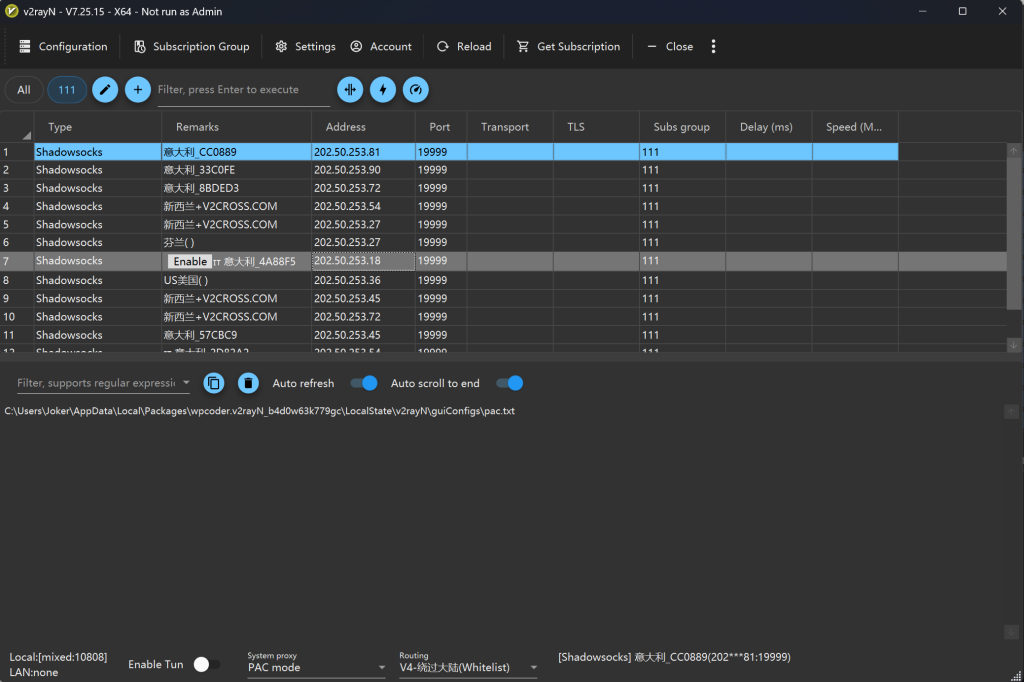
- Load your nodes: In the Add nodes section on the page, either paste your Subscription URL and click Fetch subscription, or paste individual proxy links (VMess, SS, Trojan, VLESS, etc.) into the text box and click Add nodes.
- Copy the configurations: Once the nodes appear in the list, click Select all, and then click Copy selected to copy all node links to your clipboard.
-
- Open the v2rayN client on your computer.
- Click Servers in the top menu bar, then select Import bulk URL from clipboard (or simply press
Ctrl + Von the main screen). - Your copied nodes will appear in the server list. Select a server and press
Enter(or right-click and choose Set as active server). - At the bottom bar of v2rayN, set the System Proxy option to Set system proxy to start browsing.
-
- Copy your subscription link (starting with
http://orhttps://). - Open v2rayN and go to Subscription group > Subscription group settings in the top menu.
- Click Add, enter a name under Remarks, paste your link into the URL field, and click Confirm.
- Return to the main window, click Subscription group > Update all subscriptions (without proxy) to fetch your servers.
- Copy your subscription link (starting with
4.4. Enable Proxy
Click on the “System Proxy” option, and select “Auto-configure proxy.”
Open the routing options, and select “***V4 – Bypass Mainland (Whitelist)***”. For other options, leave them at their default settings.

4.5. Verify successful connection
China & Russia:
Once the nodes are connected successfully, open google.com or youtube.com. Successful access indicates that the configuration is correct.
US:
-
- Tray Icon Color: Ensure the v2rayN icon in your Windows system tray is red (System Proxy enabled) or purple (Tun Mode enabled). If it is blue, the proxy is inactive.
- Real Delay Test: Select your active server in the list and press
Ctrl + R. A valid connection will show a number (e.g.,150 ms). If it shows-1or times out, the node is dead. - Routing Mode: Because you are in the US, the default “Bypass Mainland” rule may route most Western websites directly. Switch the bottom Routing setting to Global during testing so all traffic goes through the proxy.
-
- Success Indicator: The displayed IP Address and Location match your chosen proxy server instead of your local US ISP (e.g., AT&T, Comcast, Verizon).
-
- Browser Extensions: Disable proxy extensions like SwitchyOmega, as they override Windows system proxy settings.
- System Clock: Ensure Windows Set time automatically is enabled—V2Ray/Xray connections fail if your system clock is off by more than 90 seconds.
